Update: SummerBoard 2.1+ makes much of this tutorial inaccurate, but the theme instructions still work. I’ll be writing an updated tutorial shortly to reflect the changes and additions.
Note: Before following this tutorial, make sure you have everything you need »
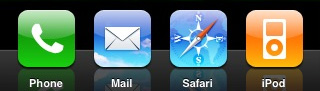
The first tutorial in this series covered using DockSwap to change your iPhone’s Dock background, specifically replacing it with one that matches the Dock on the iPod Touch:
This was fine and dandy until yesterday, when a new version of SummerBoard (an app which allows customization of the iPhone’s SpringBoard, or home screen) was released. This new version supports themes and various other settings, but most importantly it appears to prevent DockSwap from doing its job. Thankfully, we can now take advantage of SummerBoard’s new theme support to set a custom Dock background, home screen wallpaper, or both.
Summer lovin’
First thing’s first: fire up Installer.app on your iPhone and install SummerBoard (the current version as of this writing is 2.0). If you already have DockSwap installed, there’s no reason to uninstall it; it just doesn’t affect any change when you use it. However, if you’d like to save some space, you can go ahead and remove it.
SummerBoard 2.0 offers the following home screen (aka SpringBoard) customization goodness:
- Scrolling application icons
- Scroll Snap (for each row of icons)
- Wallpaper under home screen icons
- Themes (Dock and wallpaper images)
- Mini Dock (which does exactly what it says)
In addition to those main features, there are extra settings which give you additional control over your home screen:
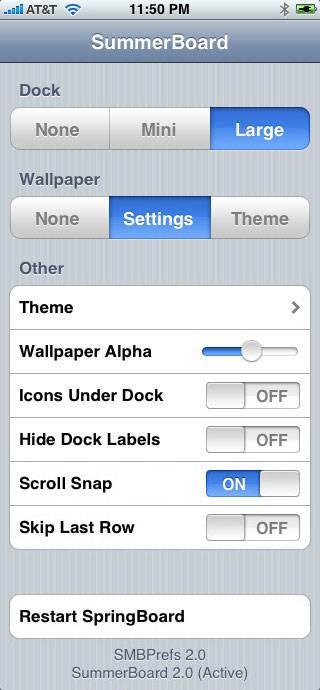
There isn’t much need to describe in detail what each of these settings does, plus it’s much more fun if you just play around with them and see for yourself.
Simple themes
SummerBoard 2.0 includes four themes by default:
- Default (aka how your iPhone shipped)
- Leopard
- Panther
- SummerBoard
Each theme is comprised of three images (pixel dimensions follow each file name):
- Dock.png (320×91)
- MiniDock.png (320×37)
- Wallpaper.png (320×480)
Creating your own custom theme is simply a matter of creating each of those images, placing them in a folder and then copying that folder to the proper location on your iPhone.
Adding a custom theme
There’s really no end to the number of custom themes you can create using an image editor and some free time, so I’ll leave that process to you (after all, this isn’t an image editing tutorial). We will, however, walk through the simple process of transferring a custom theme to your iPhone.
First, we need a custom theme—for this example, I’ve created a theme based on the iPod Touch home screen, complete with plain black wallpaper (in case don’t want your “lock screen” image showing up behind your icons). For those of you who already followed my earlier tutorial on replacing your Dock background (see the Dock screenshot at the beginning of this tutorial), this will allow you to have the same look with SummerBoard 2.0 installed:
- Download the “Touch” theme » (ZIP, 48KB)
After decompressing the archive, you will have a folder named “Touch” that contains the required image files.
Next, connect to your iPhone via SFTP (read the instructions if needed), and navigate into Library/SummerBoard/Themes (the full path is /private/var/root/Library/SummerBoard/Themes), where you’ll see the directories of the four pre-installed themes mentioned earlier. Once there, upload the entire “Touch” folder (its path should be /private/var/root/Library/SummerBoard/Themes/Touch).
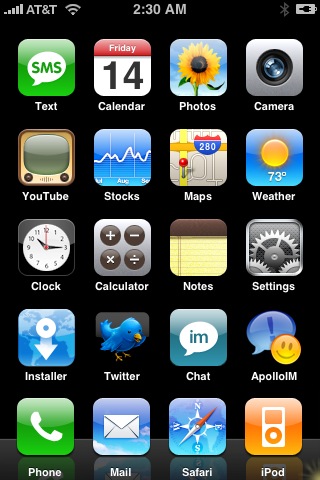
Now return to your iPhone’s home screen (press the “Home” button) and launch SMBPrefs, then press “Theme” and select “Touch” (the theme we just uploaded). Press the “Home” button once more to return to your home screen and see the new theme in place, looking something like this:
Share your customizations
If you feel inspired and create a cool theme, upload an archive to your site or other file repository and link to it in the comments of this entry. At some point in the near future, iPhone customization sites will begin to support themes, but until then it’ll be fun to pass them around.
Even if you prefer to not share your custom images, be a good sport and share any cool customizations with the entire class by posting screenshots of your customizations to Flickr and adding them to the iPhone Customization group.
Comments
62 responses to “Customize your iPhone: SummerBoard”
I have 1.1.1 but cannot upload either summerboard
please help
old version says I need 1.0.x
new version says I need 1.1.x
Hi I’m having a bit of trouble with summerboard. Its missing from the installer. There is only summerboard (old) but no new and the old one wont work because it says i need firmware 1.0.x How can i get the new summerboard?
You can find a clear tutorial on how to install and configure the latest version of SummerBoard here:
http://www.iclarified.com/entry/index.php?enid=484
Hello. I have a theme that I’ve made, and i feel that its REALLY good, but I don’t know how I would go about getting it on Installer.app. I know I’m supposed to upload an archived file to my website, but… I don’t have a website… do you know of an open source site that I could upload it to, then access by adding into Installer’s sources? Or something to that effect?
–Kevin
how do i do this for iphone 1.1.2
i don’t see that option to pick in order to change my stuff on my phone!!!???
please help me!
I downloaded the customize option and I think I hide the installer how do i get it back on my touch?? Need to download more things
Hey guys… seems like this is an issue which quite a few people have.. I accidently hid my “customize” app with the “customize” app itself.. How do I get access to hidden apps? Thank u!
Lu
I would like to know if theres an Installer source to instal Summerboard in my 1.1.1 Iphone because its no longer available.
Appreciate your help, thanks
i cant download summerboard on my 1.0.2 in my installer im currently using the 3.0 installer.plss tell wht source should i download or how can i download.cause whn i wanna download the summerboard it keep saying i hav to hav 1.1.1 or 1.1.2 to download summerboard(old) on installer..pls really need some1 help.i cant even scroll down luckily i downloaded dock to go through my app in my iphone.can some1 help???
Hey dude, I bought a used IPhone version 1.0.2 and installed some of the applications, later on I cant see all the installed program and mot important i can’t locate the install application itself,I was gonna restore it thru ITunes but it was gonna update for the latest software 1.1.3 and am scared this might block the phone again.
Please let me know what to do, i was reading all night but didn’t know how to download summerboard or how to install it since i couldn’t open it on Safari.
thanks in advance
i am using 1.0.2, have tried using ibrickr and apptap to install summerboard 2.11 but its does not show on the spring board.
please help
hey you guys.. ive been having problems with some of the smb themes.. jus recently i restored my jailbroken phone and rehacked it.. but now some themes just dont work.. ive tried uninstalling the theme itself and the entire summerboard.. still no luck.. any help”??